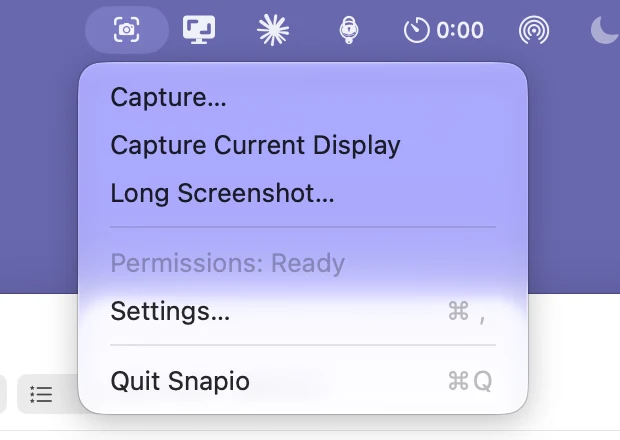
Lives in the menu bar
After you launch Snapio, it stays in the menu bar. There is no standing main window. Open the menu or use a global shortcut to start a capture.
Version 1.0 · macOS 11.0 or later
Snapio is a native macOS menu bar screenshot tool for people who capture, mark up, and share still images on a Mac. It supports region, window, and current-display still screenshots, in-place annotation, copy, save, and pin as a transparent PNG, local OCR, on-demand translation of recognized text, and vertical scrolling long screenshots. Snapio 1.0 requires macOS 11.0 or later.
Six capabilities that are already in version 1.0 — not a roadmap.
After you launch Snapio, it stays in the menu bar. There is no standing main window. Open the menu or use a global shortcut to start a capture.
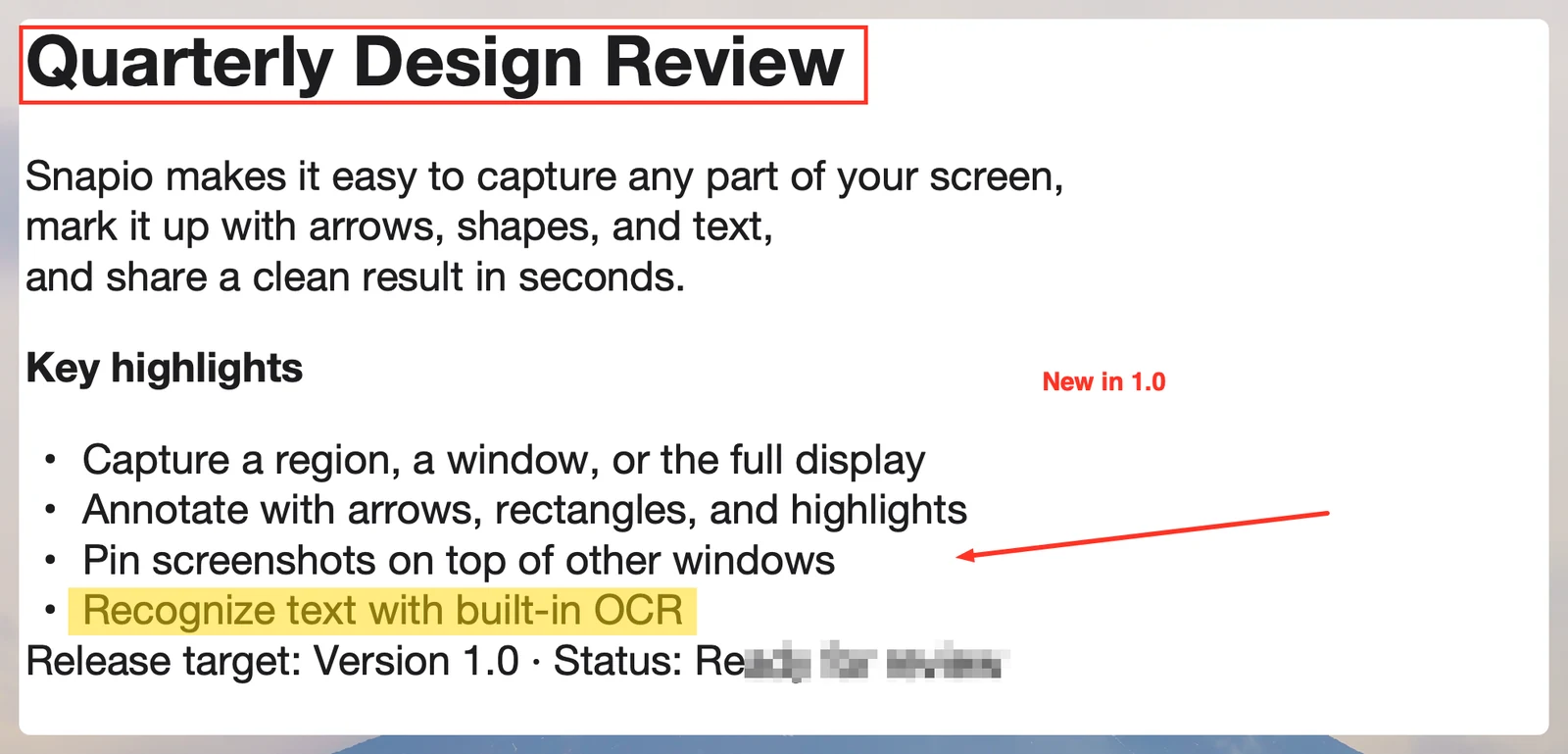
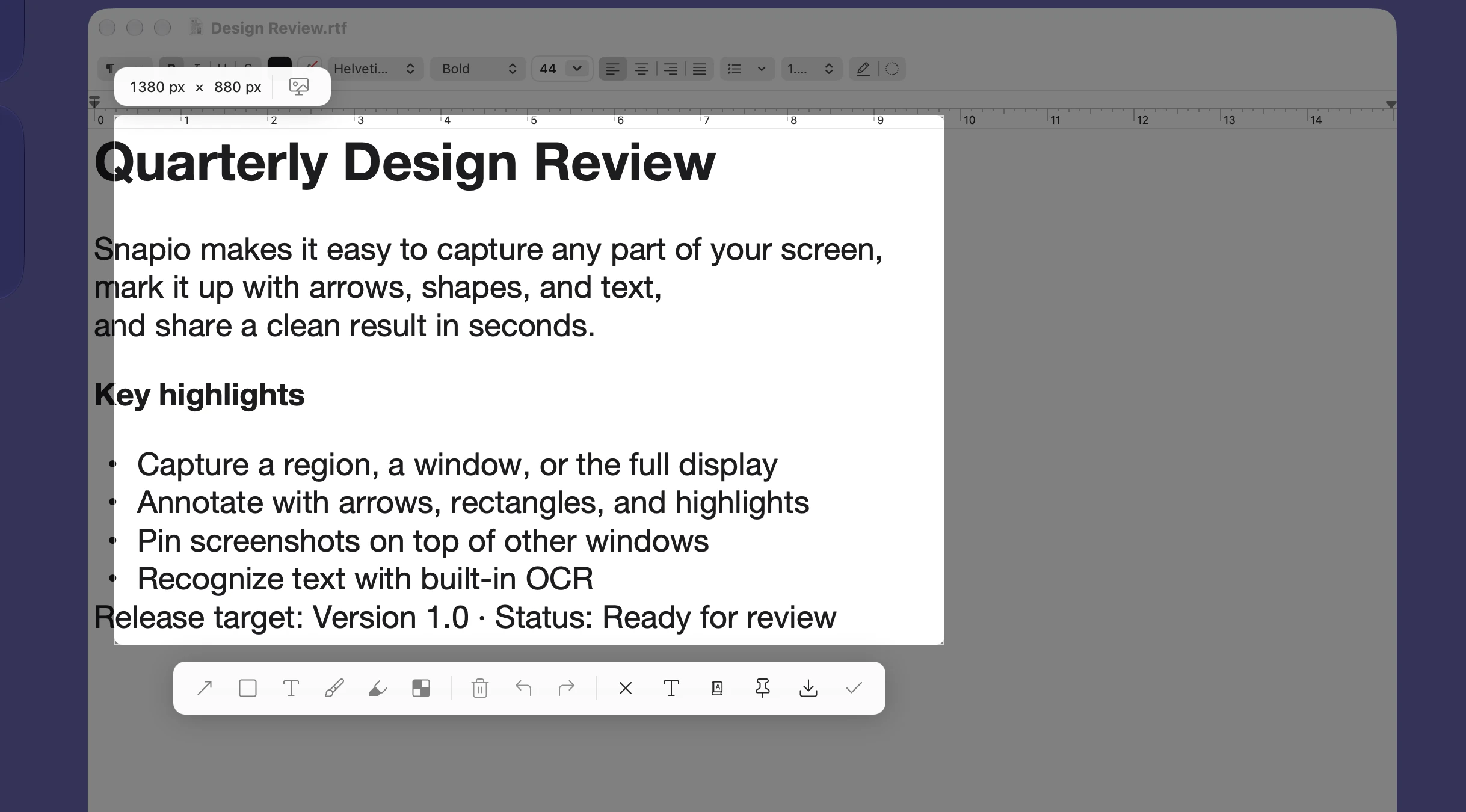
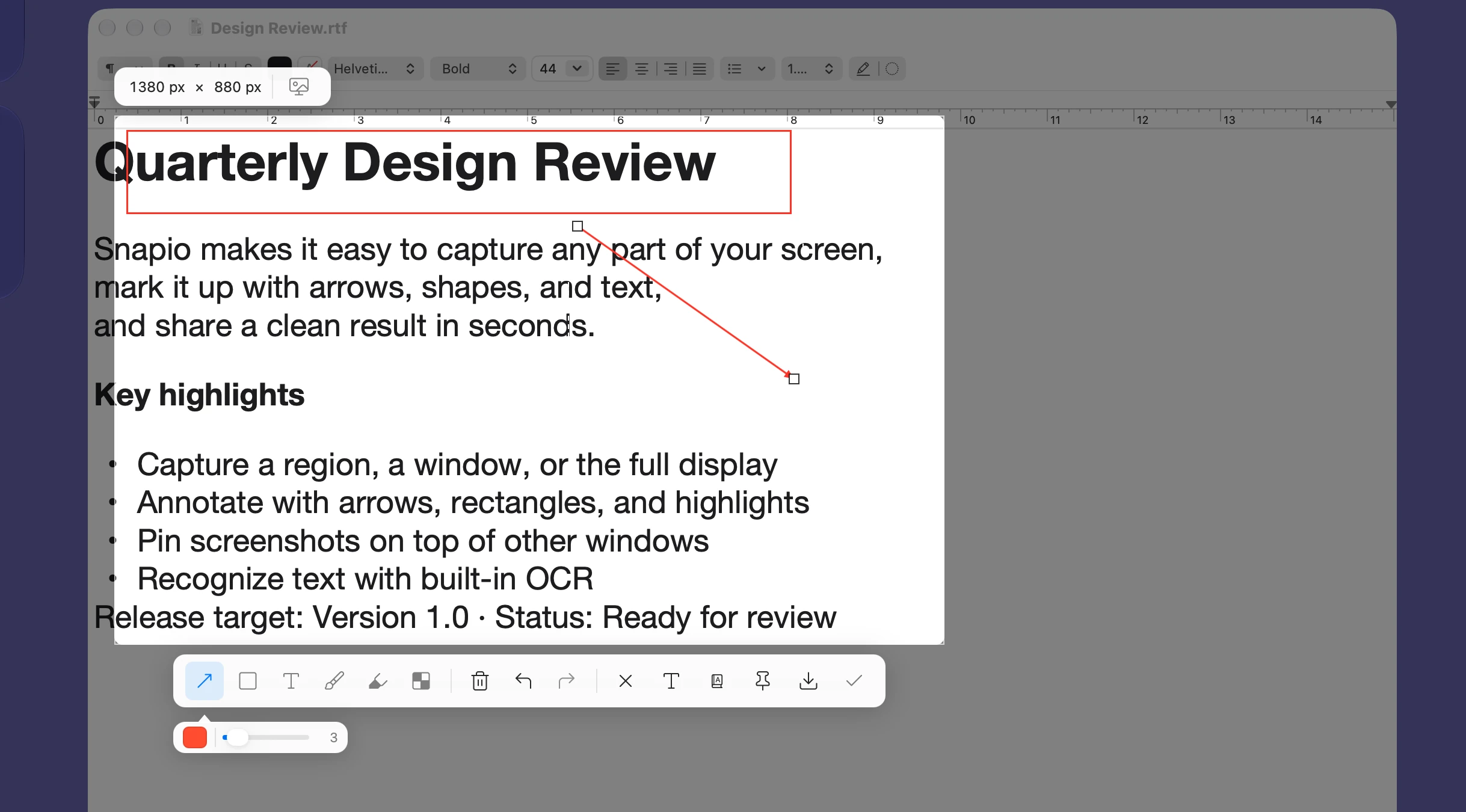
Interactive capture freezes the selection and opens a toolbar with Arrow, Rectangle, Text, Brush, Highlight, and Mosaic.
Export a transparent PNG with Copy (⌘C) or Save (⌘S), or pin the shot above other windows (⌘P). Duplicate names get a number; files are not overwritten.
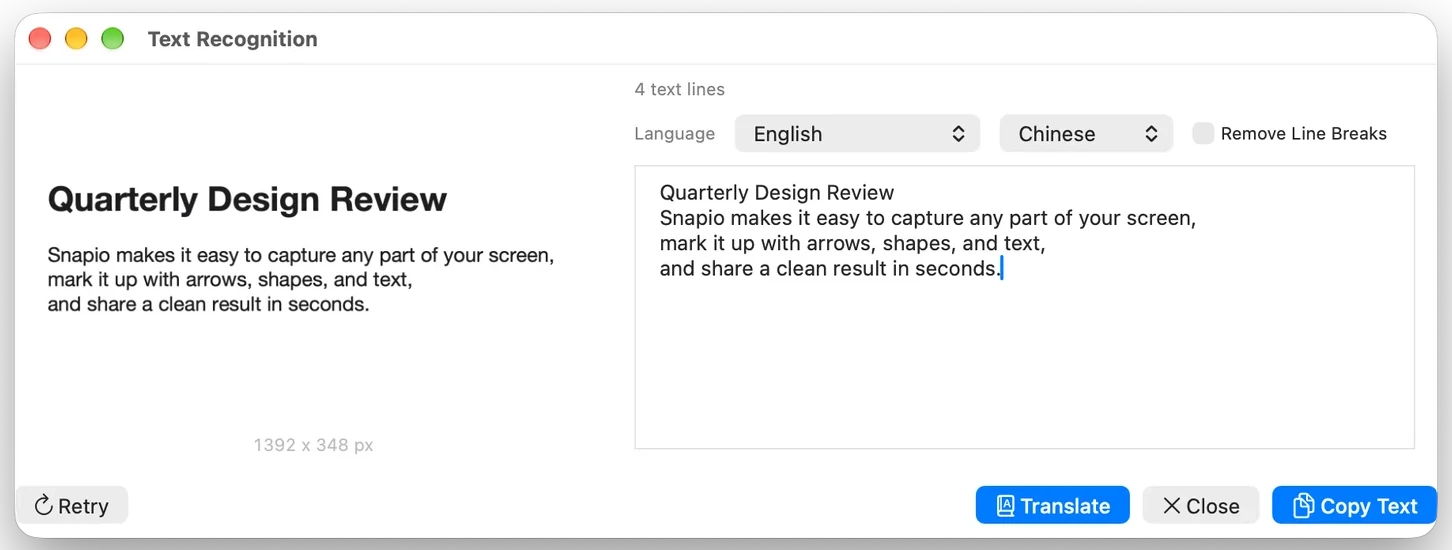
Recognize text on this Mac with Apple Vision. You can edit the result, copy it, and optionally remove line breaks. The screenshot itself is not uploaded for OCR.
Translate recognized text through an OpenAI-compatible service you configure. Snapio asks for consent first and sends only the OCR text, not the image.
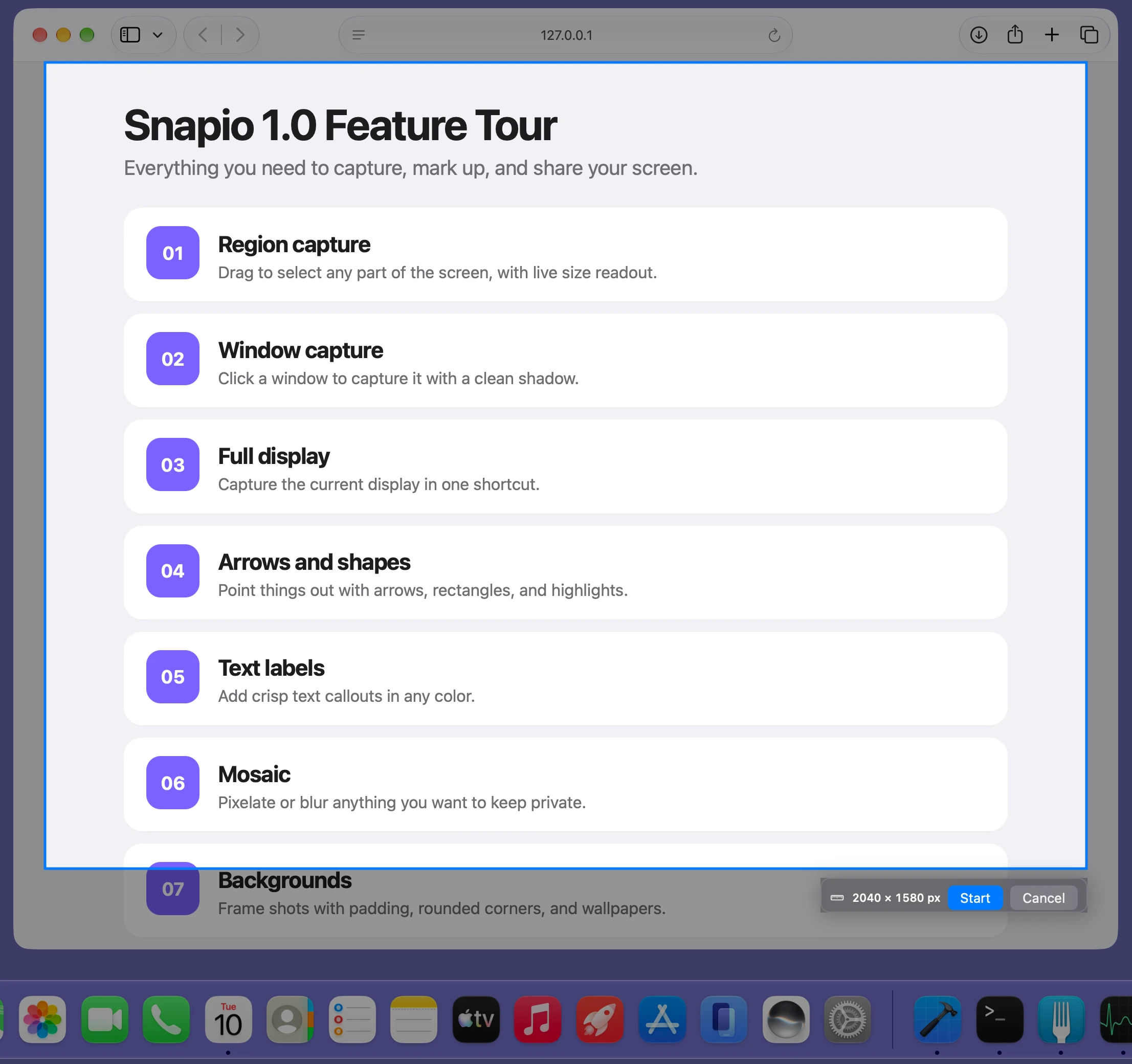
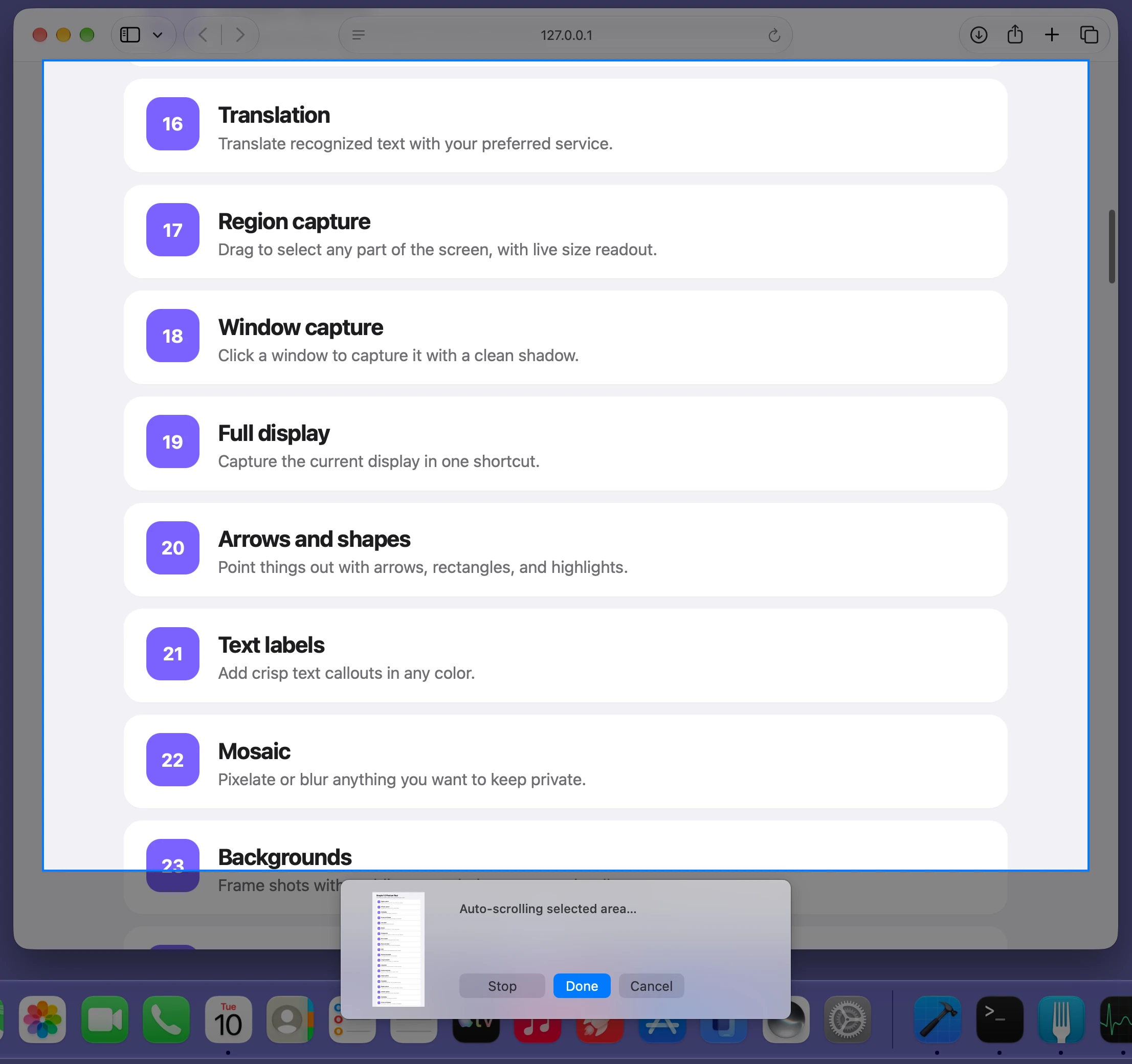
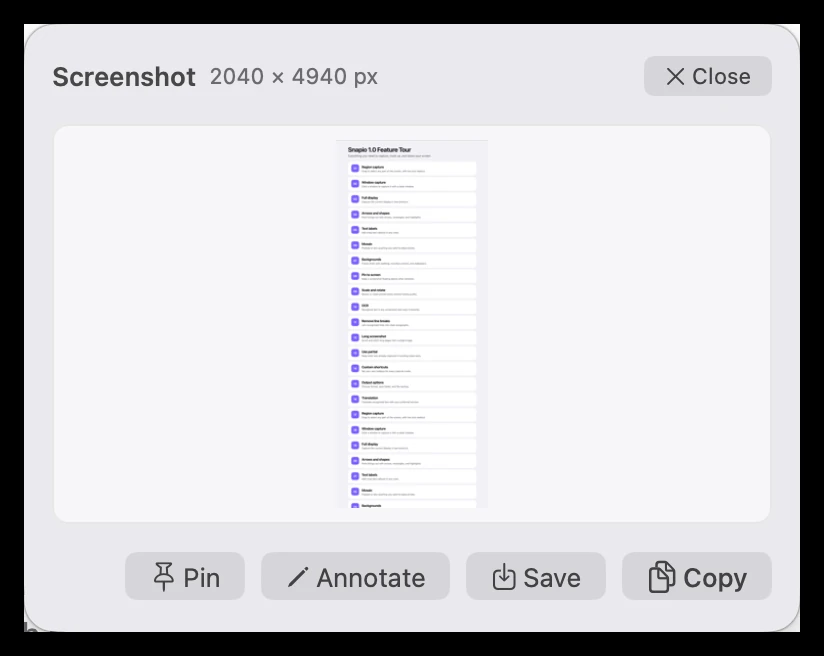
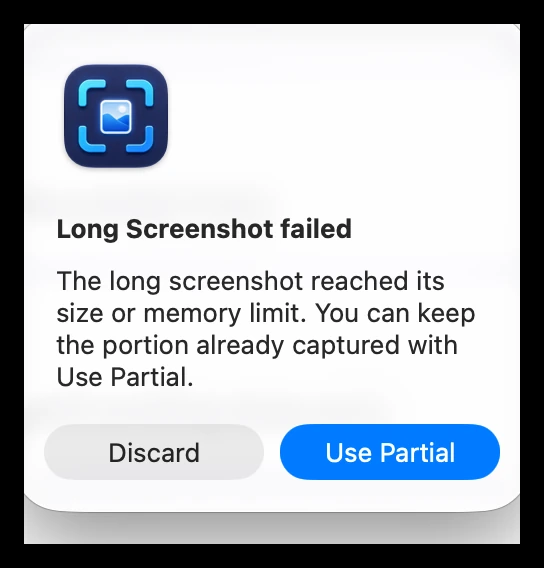
Choose Long Screenshot…, select a vertical region, then scroll yourself or click Auto Scroll. If stitching fails, you can keep what was already captured with Use Partial.
Start a capture from the menu bar, then follow the short path for each feature.
Capture
From the menu bar, capture a region, a window, or the display under the pointer, then annotate or export right away.
Annotation
After an interactive capture, mark up the frozen screenshot in place before you copy, save, or pin it.
Mosaic and Highlight only visually weaken part of the image. They are not irreversible redaction, and there is no Redact tool. You draw the rectangle yourself; Snapio does not auto-detect faces or numbers. Avoid capturing passwords, keys, or ID numbers if you need them fully hidden.
Output
Copy and Save export a transparent PNG, including any background you added.
Pin
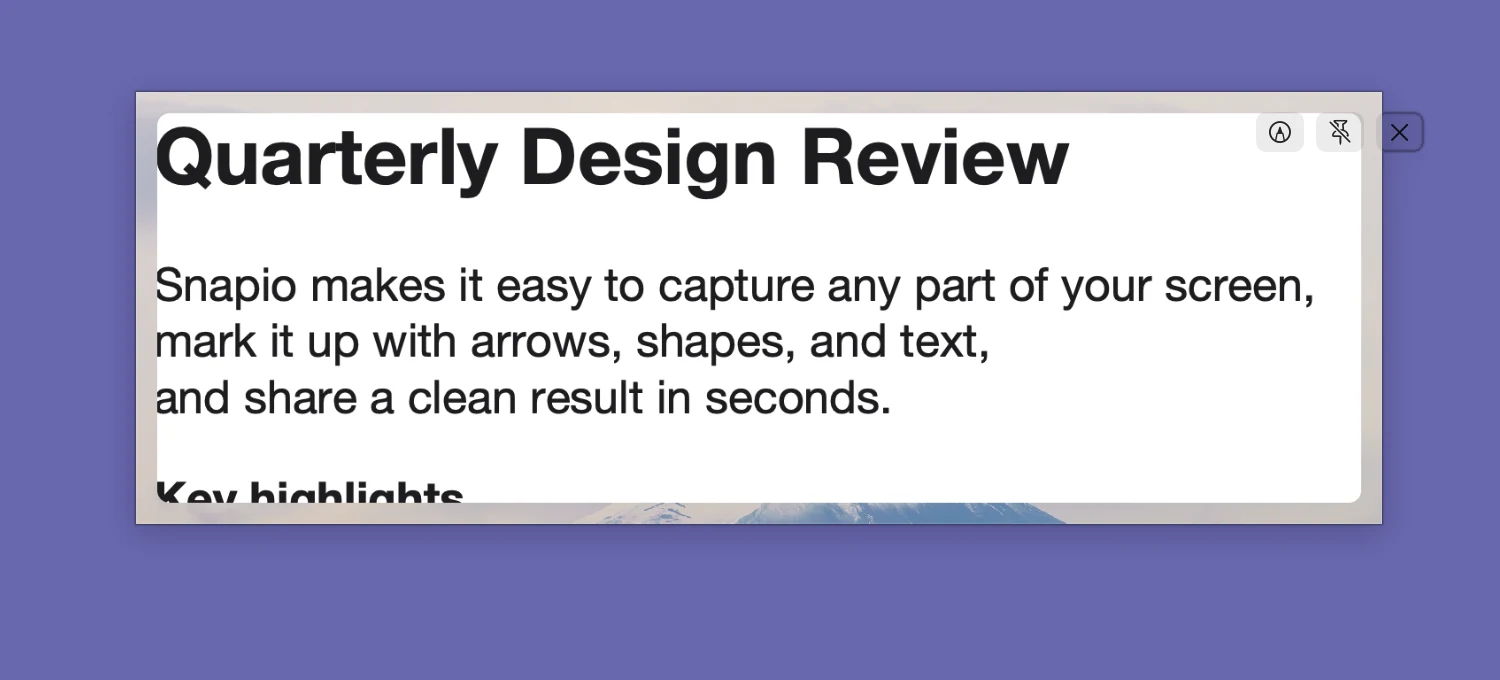
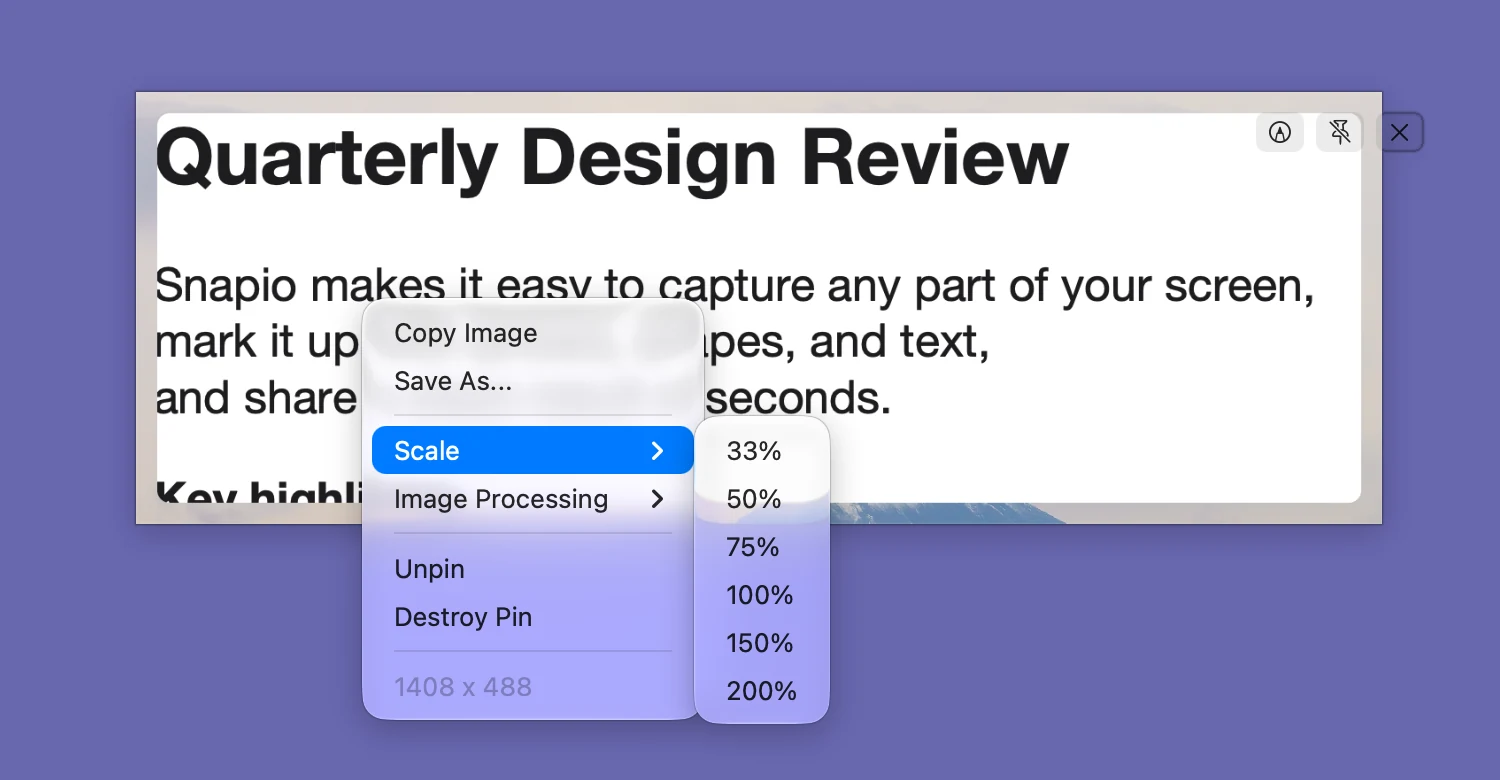
Pin keeps a screenshot above other windows so you can refer to it while you work.
Text Recognition
Extract text from a screenshot on this Mac with Apple Vision. The screenshot itself is not uploaded for OCR.
OCR does not reconstruct tables, formulas, or complex layouts, and it does not open recognized links automatically.
Translation
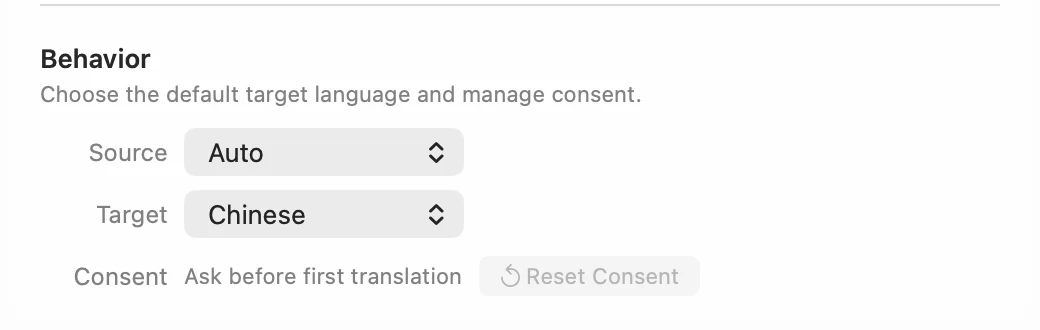
Translate recognized text through an OpenAI-compatible service you configure. Translation is not built in, not free, and not offline.
Long Screenshot
Capture a tall page, chat, or document as one vertical image on the display under the pointer. Both Screen Capture and Accessibility permission are required; Accessibility is used to control scrolling.
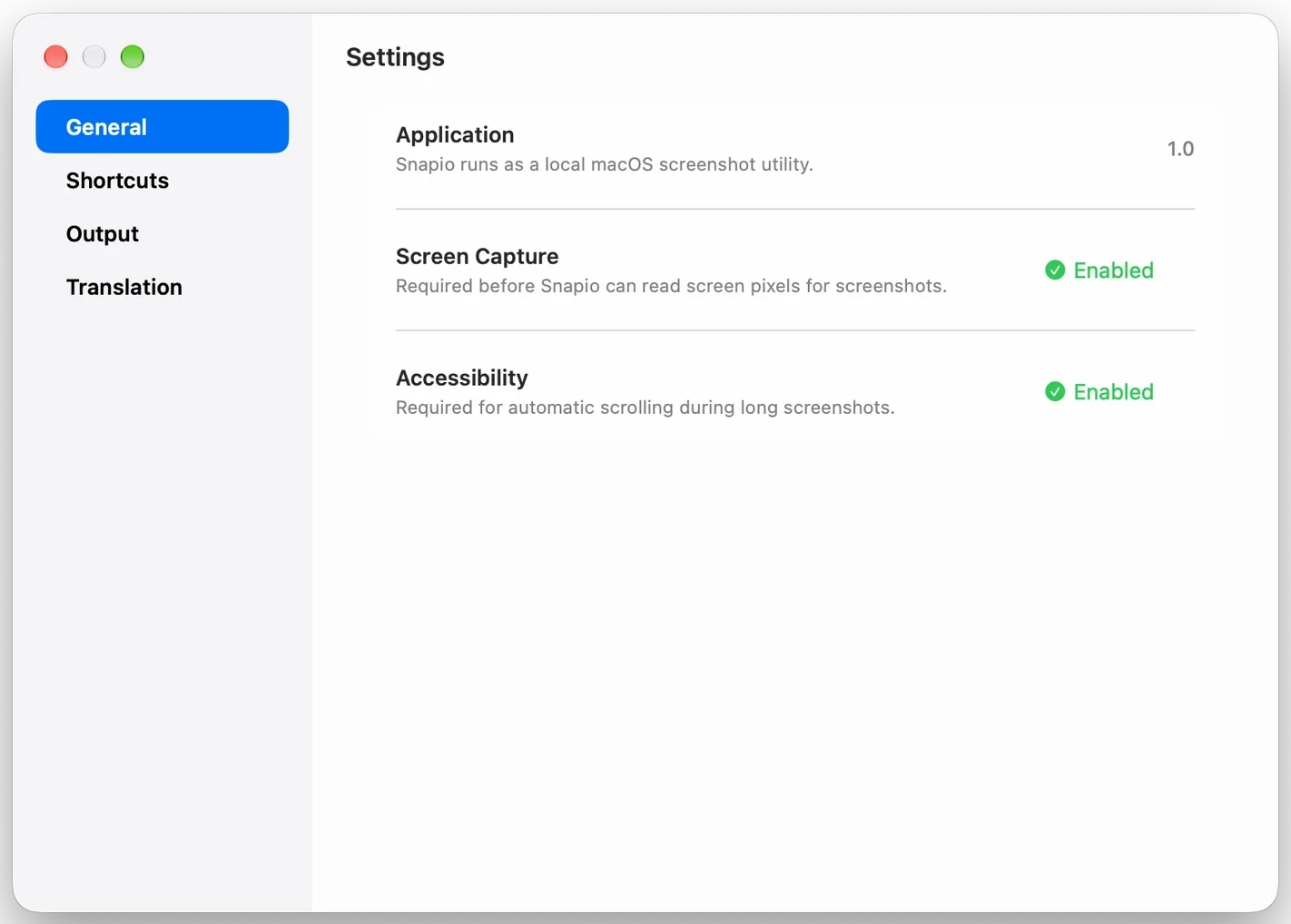
Settings
Open Settings… from the menu bar to review permissions, shortcuts, output, and translation.
Typical jobs for Snapio 1.0, paired with claims this version does not support.
| If you need to | Snapio can help with | Do not expect |
|---|---|---|
| Everyday still screenshots | Menu bar or shortcuts, region / window / current display, transparent PNG | Screen recording or a cloud capture history |
| Tutorials and design feedback | In-place annotation, Highlight, Arrow and Text, rounded backgrounds, pins | Security-grade redaction |
| Development and documentation | Window capture, a pin for on-screen comparison, Arrow / Text, local OCR to copy an error or API string | Screen recording, or pins that follow you across Spaces or return after a restart |
| Support screenshots | One-step current-display capture, Mosaic to visually weaken account details, Copy / Save, and an optional save notification | Irreversible redaction or automatic detection of ID documents |
| Images that include personal details | Manual Mosaic or Blur as a visual softening, with the limits described on this page | Irreversible redaction or automatic detection of ID documents |
| Extract text | Local OCR, editable results, copy, and Remove Line Breaks | Cloud image recognition, or faithful table and formula reconstruction |
| Chinese–English wording | Toolbar or OCR-window Translate, consent before sending, and a service or API you configure | Unlimited free translation, uploading the original image, or a named built-in provider |
| Long web pages or documents | Vertical long screenshots, Auto Scroll, and Use Partial | Horizontal long images, or a perfect stitch on every scrolling page |
| A clear privacy story | Local-first capture, annotation, pins, and OCR; explainable permissions; consent you can reset for translation; no audio recording | Hidden capture, or screenshots without the required permissions |
Snapio cannot take screenshots until macOS Screen Capture permission is granted. Vertical long screenshots also need Accessibility permission, which is used to control scrolling in the app you are capturing — not to operate the rest of your Mac. If a required permission is missing, Snapio opens a Permissions window instead of a selection overlay. Status appears in the menu bar as Permissions: Ready, Checking…, or Action Required. Ready means both Screen Capture and Accessibility have been granted. On the Permissions or General pane, each item shows Required or Enabled, with a Continue button to open System Settings.
The permissions explanation states that Snapio reads pixels for screenshots and does not record audio. Snapio does not request camera or microphone access. Ordinary captures are single-frame still images, not a recording.
Screenshots, annotations, pins, and OCR run on your Mac. A capture stays in memory until you Save it or use Save As... on a pin. There is no cloud screenshot library or cross-device gallery. The only feature that intentionally sends content over the network is translation, after you click Translate and grant consent, and it sends only the OCR text you have confirmed — not the screenshot image, window title, or clipboard. You can click Reset Consent at any time.
Version 1.0 is a still-image screenshot tool. These boundaries are intentional.
Snapio is a native macOS menu bar screenshot tool. In addition to region, window, and current-display still screenshots, it includes in-place annotation, visual privacy softening, copy and save, desktop pins, local OCR, on-demand translation, and vertical long screenshots. It is not a screen recorder.
Screenshots require Screen Capture permission. Vertical long screenshots also require Accessibility permission, which Snapio uses to control scrolling. The permissions window states that Snapio reads pixels for screenshots and does not record audio. Snapio does not request camera or microphone access. Ordinary captures are single-frame still images.
No. Screenshots, annotations, pins, and OCR are completed on your Mac. Captures stay in memory unless you choose Save, or use Save As... on a pin. Translation is the only path that intentionally sends content over the network, and it sends only OCR text you have confirmed. Snapio does not offer cloud screenshot sync.
No. Translation is not a built-in, free, or offline engine. In Settings → Translation, you configure an OpenAI-compatible service and API Key. Before the first send, Snapio asks “Allow OCR text to be sent for translation?” and states that the screenshot image, window title, clipboard, and other data will not be sent.
No. Pixelate, Blur, and Highlight only visually weaken content. They are not irreversible redaction, and Snapio does not include a fully opaque Redact tool. Mosaic is applied by manually dragging a rectangle; Snapio does not automatically detect faces, ID numbers, or similar information.
No. This version has no screen recording, GIF, camera, or audio-capture features. Long screenshots are vertical only, on the display that holds the pointer, and cannot span multiple displays.
Interactive capture is ⌘1, current display is ⌘2, and the long screenshot shortcut is unset by default. Annotation tools use 1 through 6. Copy is ⌘C, Save is ⌘S, and Pin is ⌘P. You can change these in Settings → Shortcuts.
The current version is Snapio 1.0.
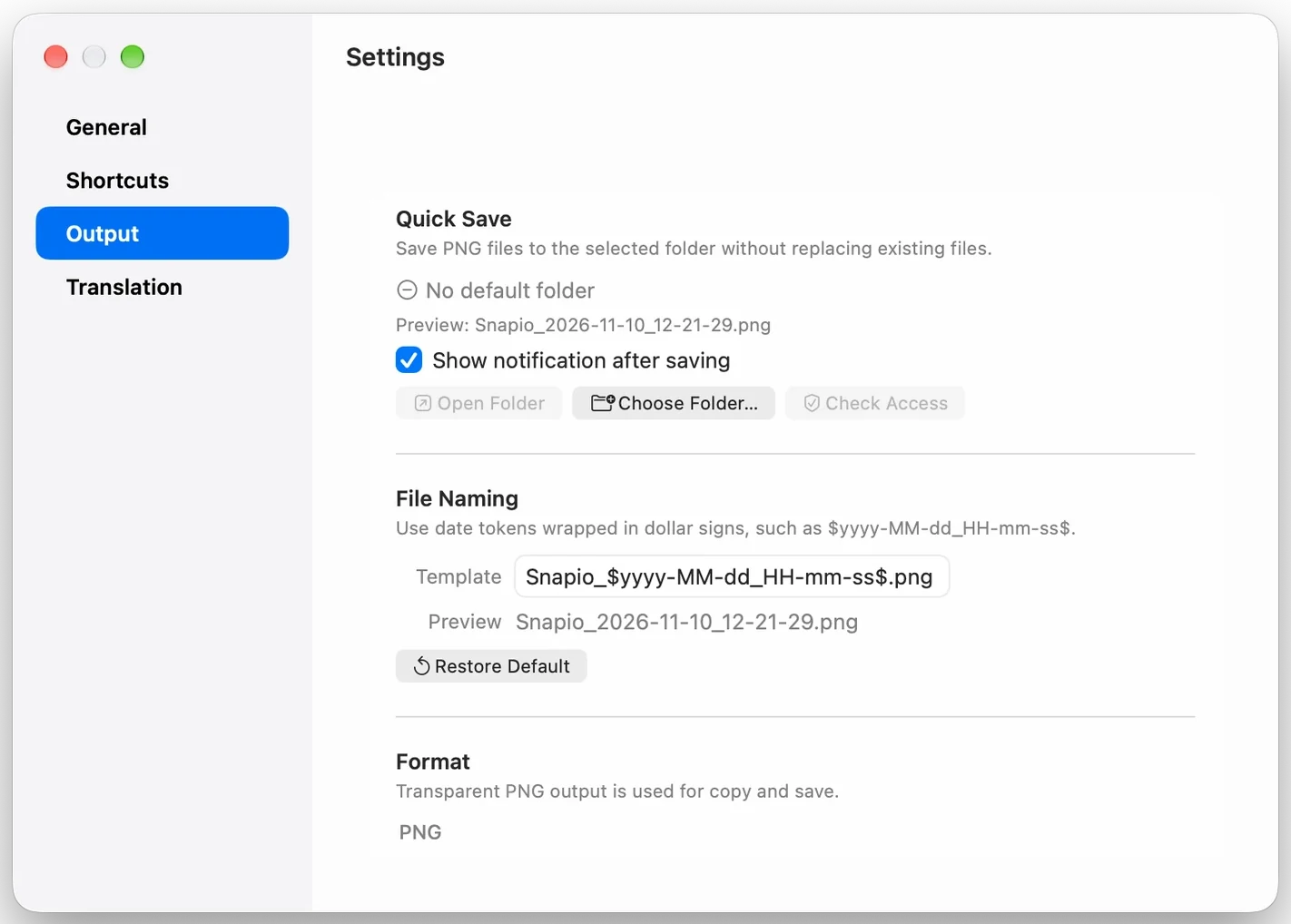
Choose a folder in Settings → Output → Quick Save. The default file name looks like Snapio_yyyy-MM-dd_HH-mm-ss.png. If a name already exists, Snapio adds a number instead of overwriting. The overlay Save button uses the default folder; a pin’s right-click menu provides Save As....
Snapio 1.0 is a native menu bar screenshot tool for macOS 11.0 or later. On the App Store, it is listed as SnipScreen.