What is StatsMate?
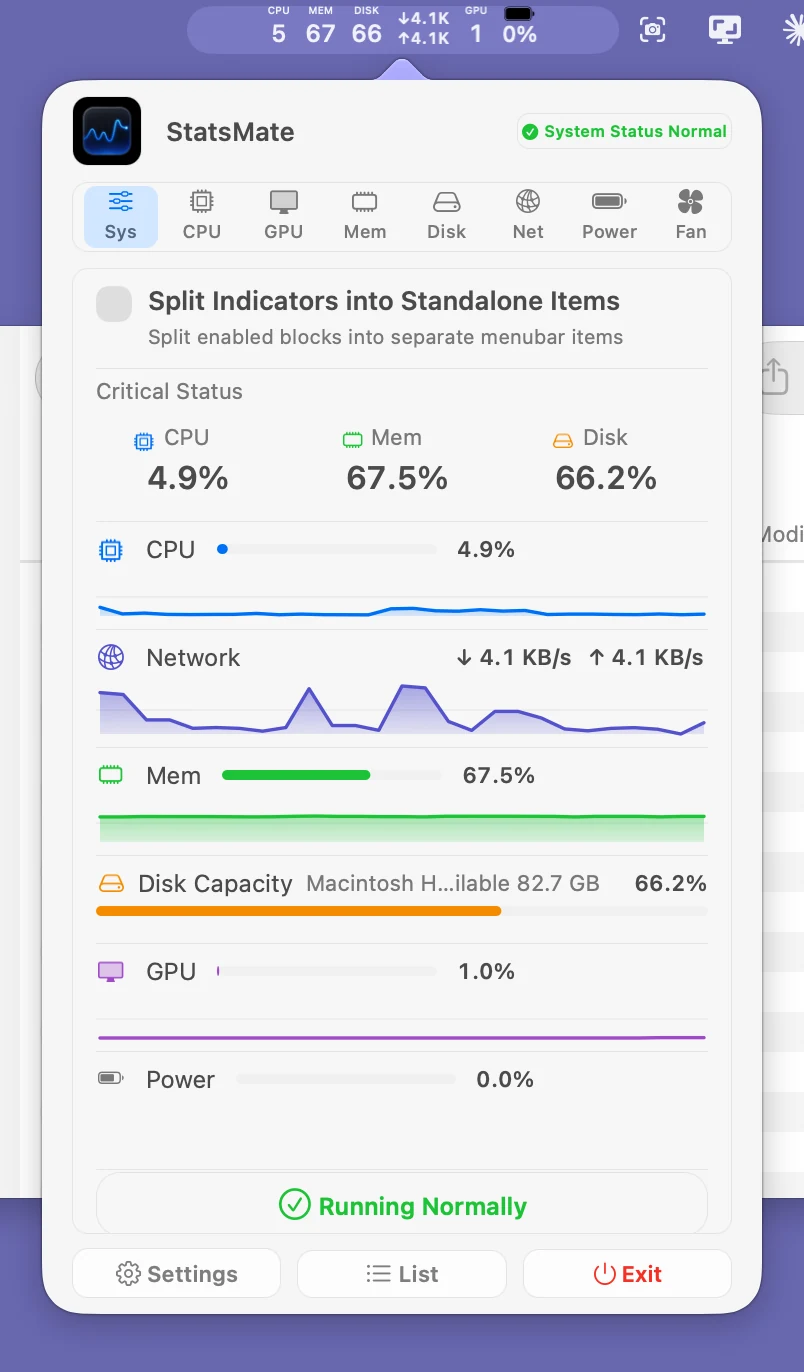
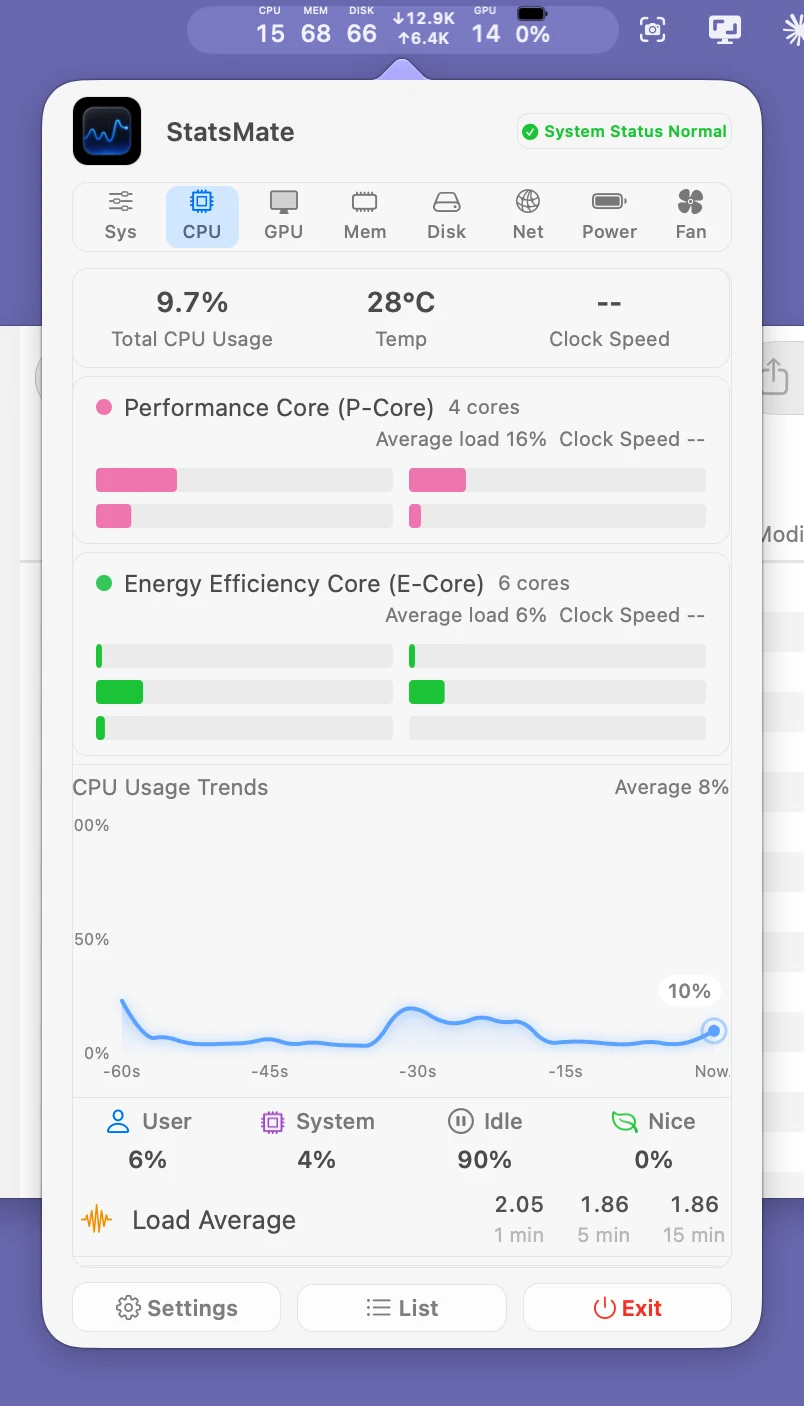
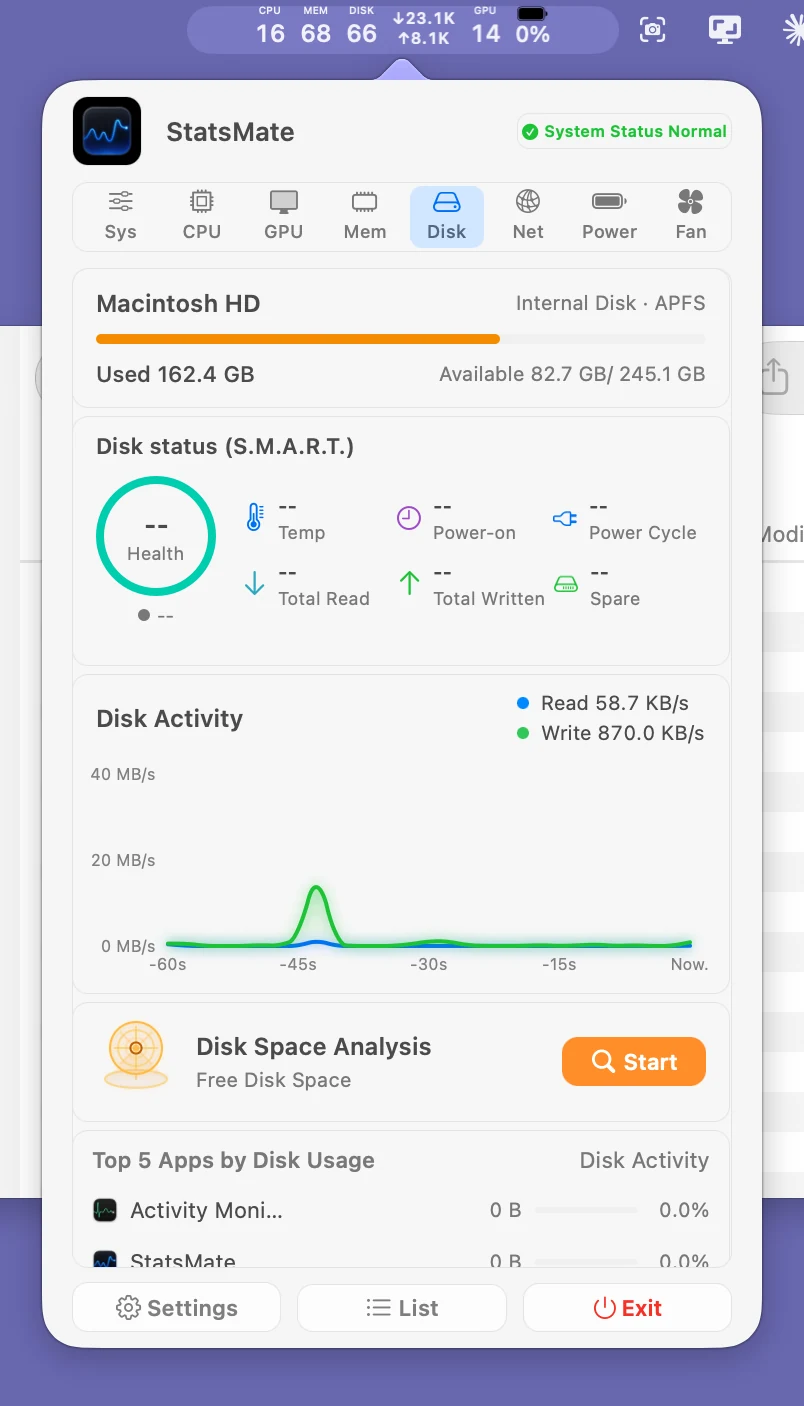
StatsMate is a menu bar system monitor for Mac. It stays in the menu bar with no Dock icon, so you can see CPU, memory, disk, network, GPU, and power at a glance, read health status and alerts, preview disk cleanup before moving files to the Trash, and inspect or quit processes. StatsMate 1.1 requires macOS 11.0 or later.
Which versions of macOS does StatsMate support?
StatsMate requires macOS 11.0 or later. Open at Login is available only on macOS 13 or later. You can use StatsMate on macOS 11 and 12, but you cannot set it to open at login on those versions.
What is the current version of StatsMate?
The current version is StatsMate 1.1.
Why is there no Dock icon, and how do I quit StatsMate?
That is expected. StatsMate is a menu bar app and does not use a Dock icon. To quit, open the dashboard from the menu bar, choose Exit in the bottom bar, and confirm.
Will StatsMate slow down my Mac?
StatsMate is designed to stay out of the way. It samples the main indicators about once a second, and actions such as a disk scan, the full process list, ending a process, and cleanup run only when you start them. You can turn on Low Power Mode in Settings to lower the sampling frequency. StatsMate does not claim a specific CPU or memory usage figure.
Why does StatsMate ask for Location permission?
StatsMate uses Location permission to read the current Wi-Fi name and signal strength. If you decline, other monitoring continues to work, but the Wi-Fi name and signal may be unavailable. Location permission is not used to track where you go.
Does StatsMate work completely offline?
No. Most monitoring runs on your Mac, but the optional speed test and public IP lookup go online. The speed test sends and receives test data; the public IP lookup uses public lookup services. Neither feature uploads your documents or files.
Is disk cleanup in StatsMate safe?
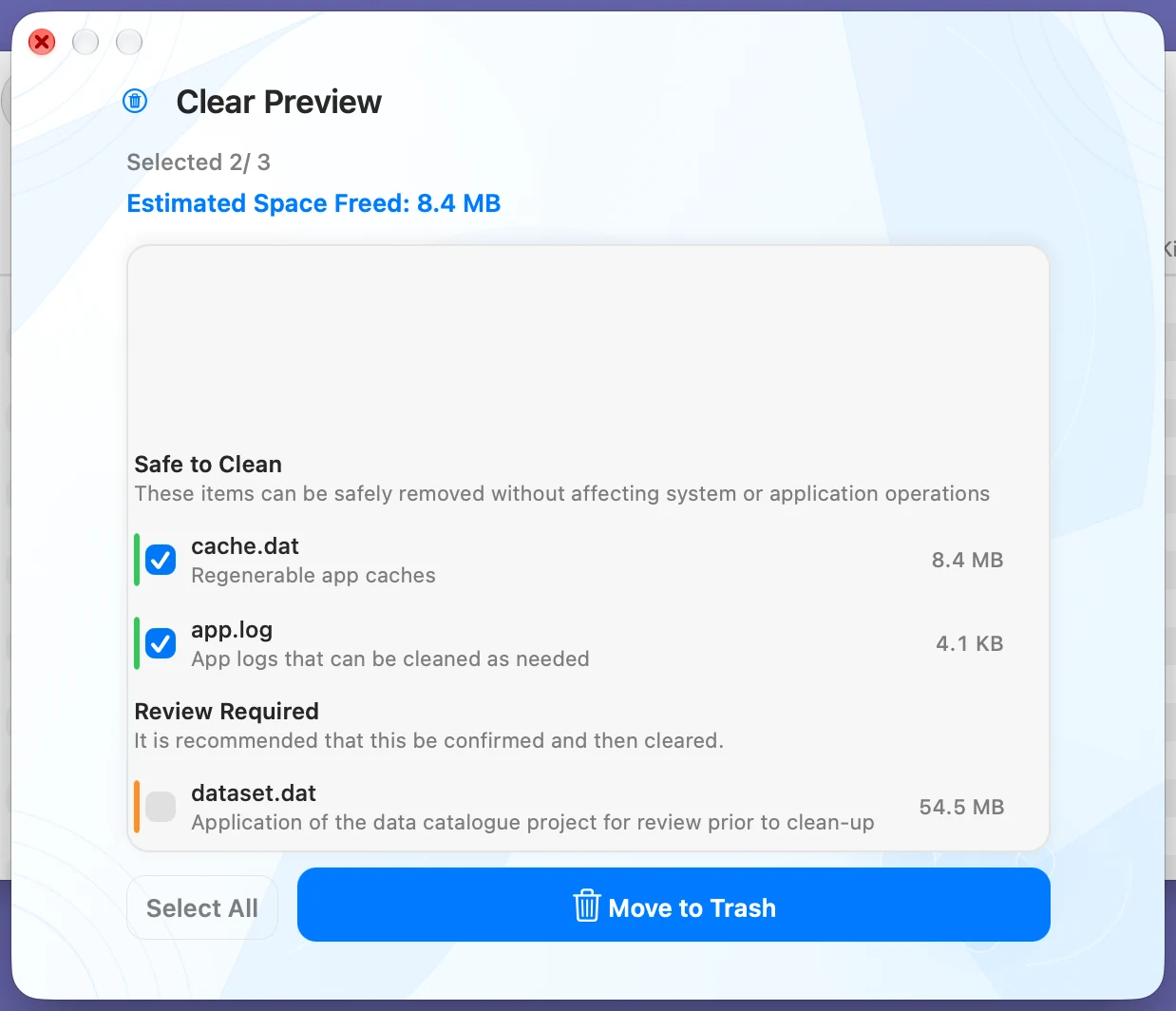
Cleanup is something you start. You choose a folder or volume, review a preview grouped into Safe to Clean and Review Required, then confirm. Safe items are selected by default; review items stay unchecked until you choose them. Confirmed items are moved to the Trash, so you can recover them there. StatsMate does not run an automatic full-disk scan and does not permanently delete files. It only analyzes locations you select and authorize.
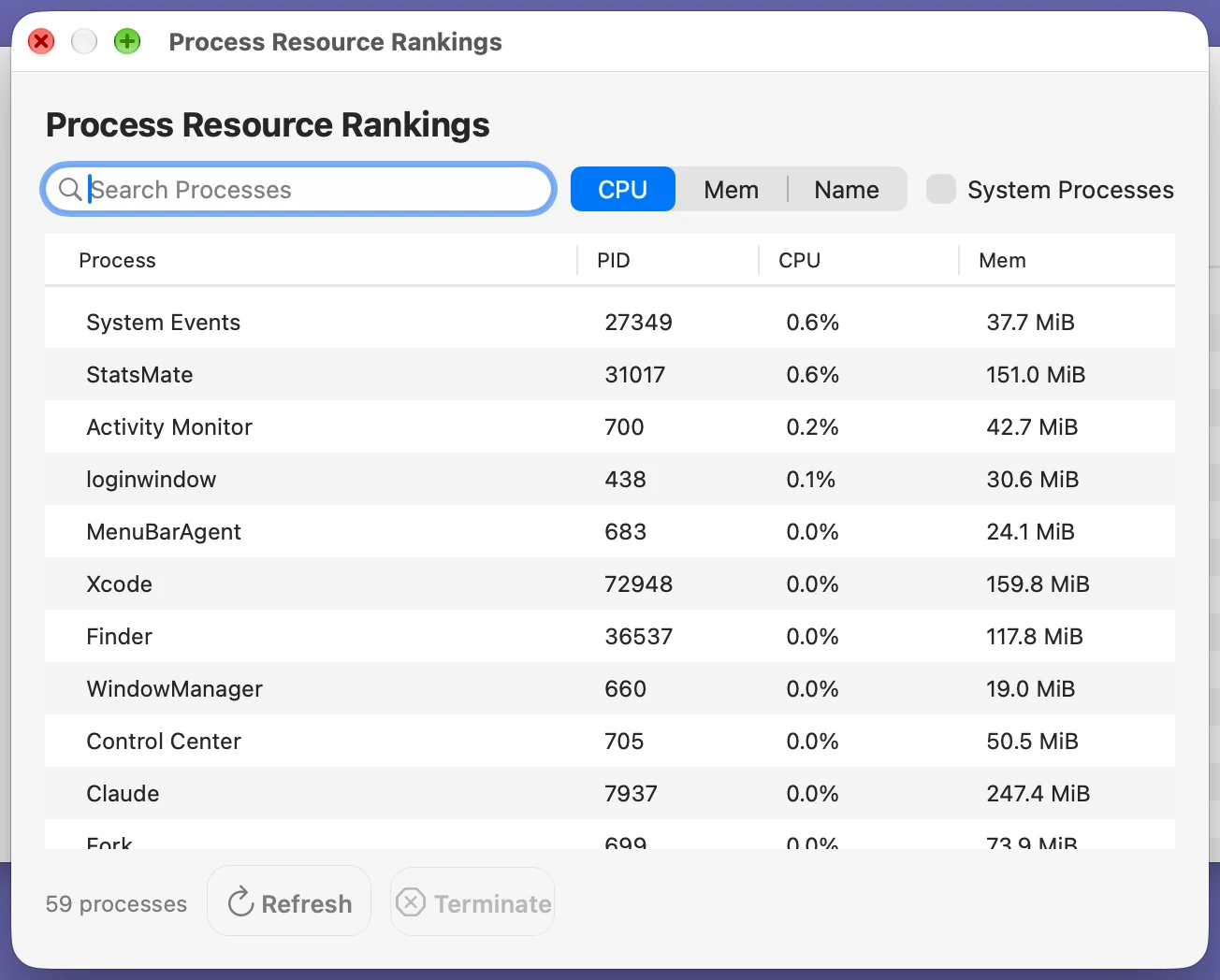
Does Terminate force-quit a process?
No. After you select a process and confirm, StatsMate requests a normal quit. The request can fail if there is not enough permission or if the process has already exited. StatsMate does not offer a force-quit action.
Why can’t I turn on Open at Login?
Open at Login requires macOS 13 or later. On macOS 11 and 12 you can use StatsMate, but this setting is not available.
Why do some readings show -- instead of a number?
A -- (or an unavailable state) means the current Mac or interface did not return that reading. Temperature, clock speed, S.M.A.R.T., GPU fields, and similar values vary by model. StatsMate does not fill missing values with 0.
Why does the Fan page say information is unavailable?
Some Macs have no fans, and on others the SMC may not return fan data at the moment. The Fan page shows Fan information not available or that no fans were detected. This is not necessarily a problem with StatsMate. The page is read-only; there is no fan-speed control.
What can StatsMate not do?
StatsMate does not speed up your Mac, control fans, calibrate the battery, limit charging, remove malware, uninstall other apps, or manage login items other than its own Open at Login setting on macOS 13 or later. It has no weather or clock menu items, no cloud sync, no remote push, and no SMS, email, or webhook alerts. It does not export long-term history, permanently delete files, or automatically scan the whole disk. Ending a process is a normal quit request, not a force quit.